
Ownership disclosure: I run Indie Affiliate and Screen Index. This is an owner-written guide to related products, with links to official sources and alternatives where relevant. Product images are official marketing images.
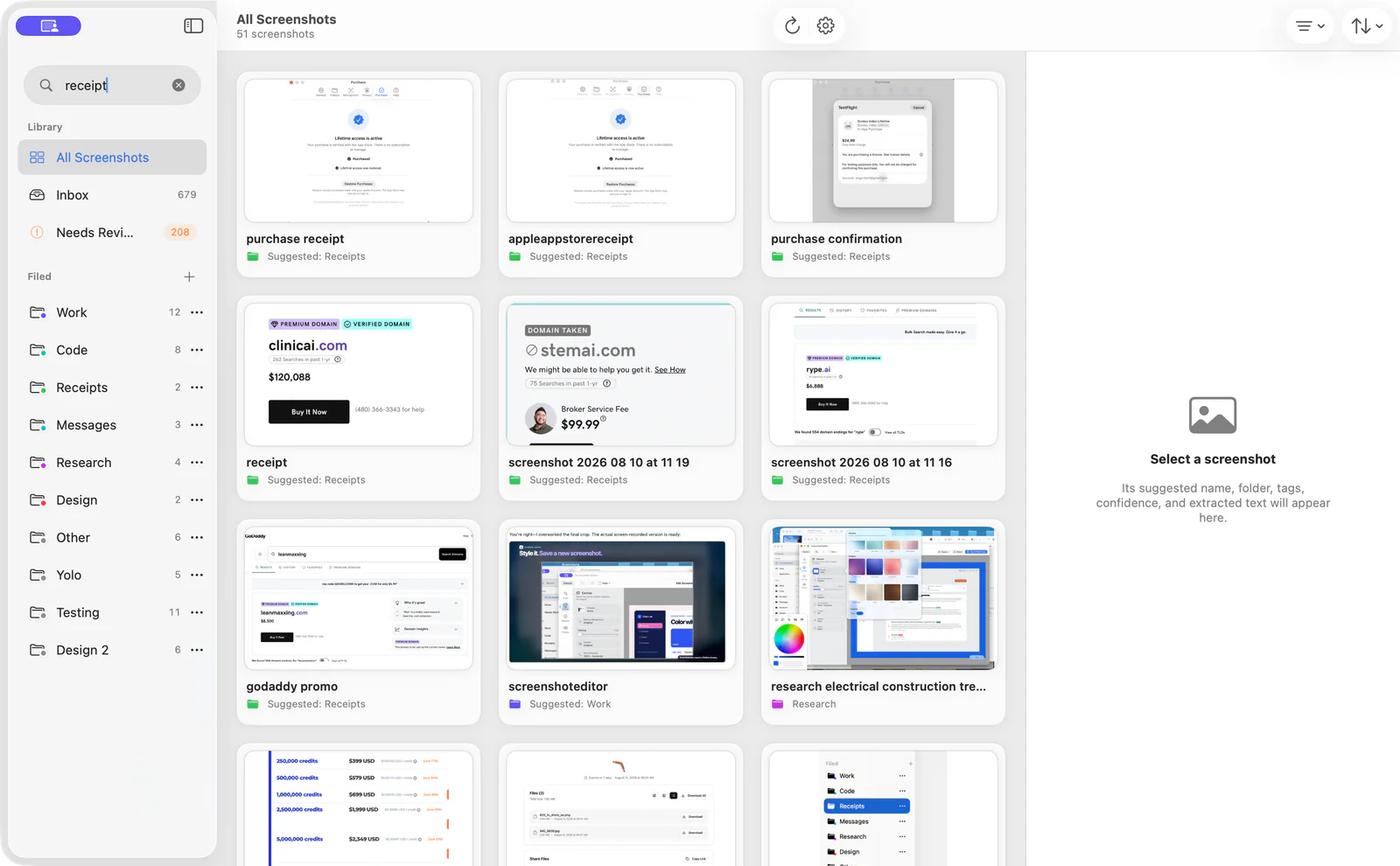
An affiliate comparison needs more than a folder full of attractive screenshots. You need to find the right image, know when you captured it, and connect it to the claim it supports. On Mac, Screen Index can help retrieve screenshots by visible text and file name while keeping the files in a Finder folder you control. Pair that search with a small evidence log to make later updates easier.
Can’t find the screenshot you remember? Explore Screen Index for local screenshot search, folders, tags, and editing on Mac.
Key takeaways
- Organize around the comparison question. A screenshot should support a specific claim or task. An image saved only because it looks good is harder to reuse accurately.
- Keep source context outside the image too. Record the product, source page, capture date, and plan or version shown. The screenshot alone may not establish those facts.
- Use search for retrieval and a log for evidence. OCR can help find words in an image. It does not verify that a price or feature is still current.
- Preserve originals before editing. Make a separate publishable copy for cropping, annotation, and redaction. Check the copy before adding it to a public review.
- Review changing claims on purpose. Revisit pricing, limits, and feature availability when updating an article. A recent publication date does not make an old image current.
What a screenshot evidence library actually is
A useful library has three parts: the original image, a way to retrieve it, and a note explaining why it was saved. The image shows what was visible. Search helps you find it later. The note connects it to the article’s claim and tells you when to recheck the source.
That is different from a gallery of marketing assets. Product artwork may help introduce a tool, but it does not show that you completed a workflow or verified a paid-plan limit. Label official artwork as product imagery and keep it separate from your own task evidence.
For affiliate comparisons, accuracy matters at the point of recommendation. If a screenshot shows a premium feature, do not describe it as included in a free plan. If the interface has changed since capture, update the image or explain the difference rather than silently treating it as current.
Choose a small filing system
Start with one comparison project folder. Inside it, use a folder per product and separate originals from publish copies. Keep a plain evidence note or spreadsheet beside those folders. You do not need a large taxonomy to make this useful.
Use tags for recurring questions such as pricing, onboarding, export, and limitations. A product name belongs in the file or folder context; the tag describes the evidence’s purpose. Avoid inventing ten near-identical tags that you will not remember next month.
| Item | Example label | Why keep it |
|---|---|---|
| Original capture | product-pricing-2026-10-23.png |
Preserves what you captured |
| Publishable copy | product-pricing-redacted.webp |
Distinguishes the edited asset |
| Evidence note | Source URL, date, plan, claim | Connects the image to the article |
| Review tag | Pricing or export | Groups similar comparison questions |
The file names above are a suggested convention. They are not examples of a test we performed or evidence of any product’s price.
Find screenshots with Screen Index
Screen Index’s free version searches file names and visible screenshot text and includes folders, tags, and basic editing. It works with normal Mac files, without requiring an account. Its public site says search runs on your Mac and your originals remain in the Finder folder you choose.
Pick a distinctive phrase from the image when searching. A product’s common name may return many results, while a particular button label or warning can narrow the set. Open the matching image and check that it is the right plan, date, and workflow before using it.
Lifetime adds Global Recall, Quick File, richer search, Capture Context, and presentation tools. The 14-day Lifetime trial starts after the first new screenshot is successfully processed. The app requires macOS 26 or later, and some capabilities depend on compatible hardware and system features.
Treat remembered context as a clue. Capture Context can retain source-app information and, with permission, the active webpage. An exact source page is available only when it was actually captured; do not assume every image has a recoverable original URL.
Build a searchable project library: Check Screen Index’s current features and requirements, then test retrieval using a few screenshots from your own comparison.
Match the tool to the evidence task
| Tool or record | Best role in this workflow | Limit to remember |
|---|---|---|
| Finder folders and tags | Store and group ordinary files | Organization alone does not verify a claim |
| Screen Index | Retrieve screenshots and prepare edited copies | Search results need a source and date check |
| Evidence note or spreadsheet | Record sources, dates, plans, and article claims | Keep it current as the article changes |
| Published comparison | Explain the finding to a reader | Only include claims supported by the evidence |
These tools complement one another. A search app can reduce digging through images, but it does not replace the editorial decision about whether a screenshot supports the sentence beside it.
Prepare an image for publication
Open the image at a readable size. Crop around the part that answers the reader’s question while preserving enough context to understand it. Add a short annotation if it makes the action clearer. Remove account identifiers, customer information, and unrelated notifications from the public copy.
Check the exported file itself rather than assuming the edit worked. Read small text at the size it will appear in the article. Use alt text that describes the information the image contributes, and provide the important facts as readable text too. A comparison table should remain HTML, not a screenshot of a table.
A repeatable comparison update
For each claim, open the current official source and compare it with your evidence note. Replace outdated images. Check the destination links and CTA wording. If you did not retest a feature, do not describe the update as a new hands-on test.
A useful completion check is simple: another editor should be able to find the original image and source note from the article asset. This is a suggested workflow standard, not a measured time-saving claim or customer case study.
FAQ
How do I search for words inside a screenshot on Mac?
Screen Index’s free version supports searching visible screenshot text and file names. Try a distinctive phrase, then inspect the matching image before reusing it.
What should I record with a product screenshot?
Record the product, source URL, capture date, plan or version, and the claim it supports. Those notes help you check whether the evidence is still current.
How does Screen Index store screenshots?
Its public site says originals remain in the Finder folder you choose and search runs on your Mac. Choosing to publish or share an exported image is a separate action.
What is included in the free version?
The public site lists file-name and visible-text search, folders, tags, and basic editing without an expiry. Lifetime adds richer search and workflow features.
How does the Lifetime trial start?
The stated 14-day trial starts after the first new screenshot is successfully processed. Downloading the app alone does not start it.
How should I use screenshots of pricing?
Label the capture date and plan and link to the current official pricing. Recheck it before recommending a purchase because the image may become outdated.
Make the next update easier
Choose one comparison you already maintain. Collect its originals into a clear project folder. Add source notes for the claims most likely to change. Test whether you can retrieve each image from a remembered phrase. Keep the system small enough to use every time you capture new evidence.
Start with your existing screenshots: Visit Screen Index for the Mac download and current free and Lifetime details.
Sources and disclosure
Reviewed October 23, 2026: Screen Index features and terms, text-search guide, and organization guide. Folder conventions and evidence checks are the author’s suggested workflow.